5 Gemini Agent Workflows for Small Business: Run Them End to End with Runable

Why this matters now: On November 17, 2026, Google began rolling out Tasks in Gemini to hundreds of millions of people, including users in India. Tasks can work in the background on multi-step jobs, using services such as email and Calendar. That makes this a timely moment to examine which business workflows Gemini is moving toward, and what businesses can already run end to end using Runable.
Key Takeaways
- Gemini can work directly inside Gmail, Sheets, Calendar and other Google Workspace products. Which features you get depends on your plan, admin settings, region and rollout.
- Runable can run the same five jobs from one chat, across the apps you already use, and it can repeat them on a schedule. We ran all five workflows in Runable using fictional data. No customer-facing message was sent; the scheduled reporting test delivered its result only to our own inbox.
- Start with internal, reversible tasks. Keep human approval on customer messages, payments, deletions and changes to systems of record.
- Every workflow below has a copyable prompt, our real Runable result and a tip for taking it further.
- Runable is the place to get all of it done in one spot: these workflows, plus your website, video, slides, marketing and ads, in the same chat and the same Runable account.
✅ > Direct answer: Is Gemini useful for a small business? Yes, especially when the work already lives in Google Workspace. The safest first use cases are inbox triage, meeting follow-up, internal reporting, scheduling and other repeatable workflows with clear rules. Give it a narrow job, limit its access and review its work before expanding what it can do.
Gemini can complete useful business tasks directly inside Gmail, Sheets, Calendar and other Google Workspace products. Small businesses can also perform similar tasks through Runable by connecting the apps they already use. In this guide, we compare five practical workflows across both approaches. We ran all five in Runable Chat with fictional data, and you can see each result below. The five also work as one connected loop, and Runable can repeat the reporting step every week with a Scheduled Task. The underlying model was not shown during our runs.
This guide is for business owners, operators and marketers who live in Gmail, Sheets and Calendar and want to know which routine tasks to hand to an AI assistant first. It also shows why many small teams end up using Runable for the whole job: one agent that connects to your apps and can also build your website, make videos and slides, and run your marketing and ads.
Google has announced these workflows across Gemini in Workspace and its broader Gemini agent ecosystem. Availability can vary by Workspace edition, administrator settings, region and rollout status. We ran all five workflows in Runable. We did not run Gemini side by side, so this is not a head-to-head test.
Two terms are used throughout. Gemini inside Google Workspace means Google's own Gemini features in its apps. Runable Chat with connected apps means asking Runable in plain language to work in apps you have connected, such as Gmail and Google Sheets. Runable is our product, so weigh the comparison accordingly. Runable may choose a compatible model for a task, and where the model was not visible we attribute the result to Runable, not to Gemini.
Gemini agent workflows at a glance
| Workflow | Gemini route (based on published capabilities) | Runable status | How we labelled it |
|---|---|---|---|
| 1. Gmail drafting | Native Gmail experience | Five drafts created, nothing sent (7 credits) | Run in Runable with fictional data; Gemini route based on published capabilities |
| 2. Meeting follow-up | Gemini with meeting/Workspace context | Notes turned into actions and a Gmail draft (9 credits) | Run in Runable with fictional notes; Gemini route based on published capabilities |
| 3. Weekly report | Gemini in Google Sheets | Totals checked by hand, report written to the Sheet (89 credits), then a Scheduled Task run that emailed the report | Run in Runable with fictional data; Gemini route based on published capabilities |
| 4. Calendar scheduling | Gemini with Calendar | Three free slots found, reply drafted (15 credits) | Run in Runable with fictional events; Gemini route based on published capabilities |
| 5. CRM update | Gemini with supported integrations | Lead row updated after our OK (8 credits) | Run in Runable with a Google Sheet standing in for a CRM; Gemini route based on published capabilities |
Every Runable run used fictional data in Auto mode, and the model was not shown. Runs only created Gmail drafts, edited our demo Sheets or, for the scheduled report, emailed our own inbox, so nothing reached a customer. Adapt the prompts to your business and verify the output in your own account.
How the five workflows connect
These are not five separate tricks. In Runable they chain into one weekly routine, because every step works in the same chat with the same connected apps:
- Workflow 1, Inbox to drafts. New customer emails get a category and a draft reply.
- Workflow 2, Meeting to actions. Notes become decisions, owners and a follow-up draft.
- Workflow 3, Week to report. A Scheduled Task reads the Sheet every Monday and emails you the report.
- Workflow 4, Reply to times. A request for a call gets three free slots from your Calendar, drafted as a reply.
- Workflow 5, Lead to record. When a customer says yes, their row in your lead Sheet is updated after you approve it.
You approve anything that leaves your account or changes a record. Runable's Scheduled Tasks page says a task can run once, daily, weekly or monthly and send the result to email, the mobile app or a connected chat app. Google's own agent can do some of this inside Workspace. The difference is that Runable reaches your other connected apps from the same place, and it can run unattended on a schedule.
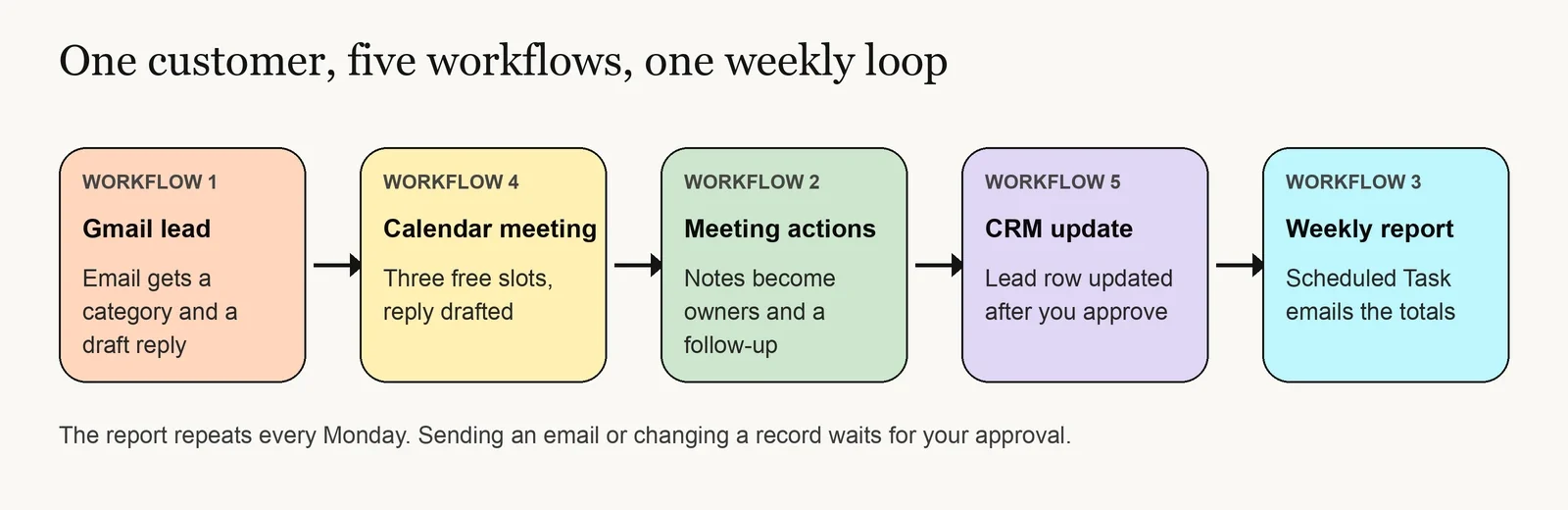
A lead's path through the five workflows: Gmail lead, Calendar meeting, meeting actions, CRM update, weekly report
Why Runable: everything in one place
These five workflows are one slice of what Runable does. Runable is a general AI agent for building, running and growing a business, and it works from a single chat. The same account that triages your inbox can also build the website that brings the leads in, make the video and slides that sell the offer, and run the marketing and ads that drive more of them.
| What you can do in Runable | |
|---|---|
| Build | Websites and apps, slides and carousels, images and video, documents and research |
| Run | The workflows in this guide, 3,000+ connected apps, Scheduled Tasks, meeting notes with Notetaker, and an assistant you can reach from Slack, Teams, Telegram, iMessage and Discord |
| Grow | Marketing and ads |
That is the main reason to choose Runable. Gemini is strongest inside Google's own apps. Runable gives you one agent and one credit balance for the whole business, so a lead who replies to your email can end up in your Sheet, on your calendar and on a landing page you built that same afternoon, without moving between five tools. The two also work together, since Runable connects to Gmail, Sheets and Calendar.
What is a Gemini agent?
A Gemini agent is an AI system that pursues a multi-step goal across tools such as Gmail, Calendar, Drive and Sheets, instead of answering one prompt at a time. It can plan steps, use your context, take approved actions and report back. Which of these actions you get depends on your Google plan, admin settings and rollout.
That is different from asking a chatbot to draft an email. A chatbot gives you text; an agent can find the relevant thread, use information from a Sheet, prepare the reply and report what it did. Some existing Gemini features inside Workspace behave more like assistants, while Google's newer Gemini agent can plan and execute multi-step work. The exact behavior depends on the feature and its availability. Google introduced its universal Gemini agent at Gemini at Work 2026 on October 8, 2026, and describes it working inline in Gmail, Drive, Docs, Slides, Sheets, Chat and Calendar, with permissions and audit trails for enterprise use.
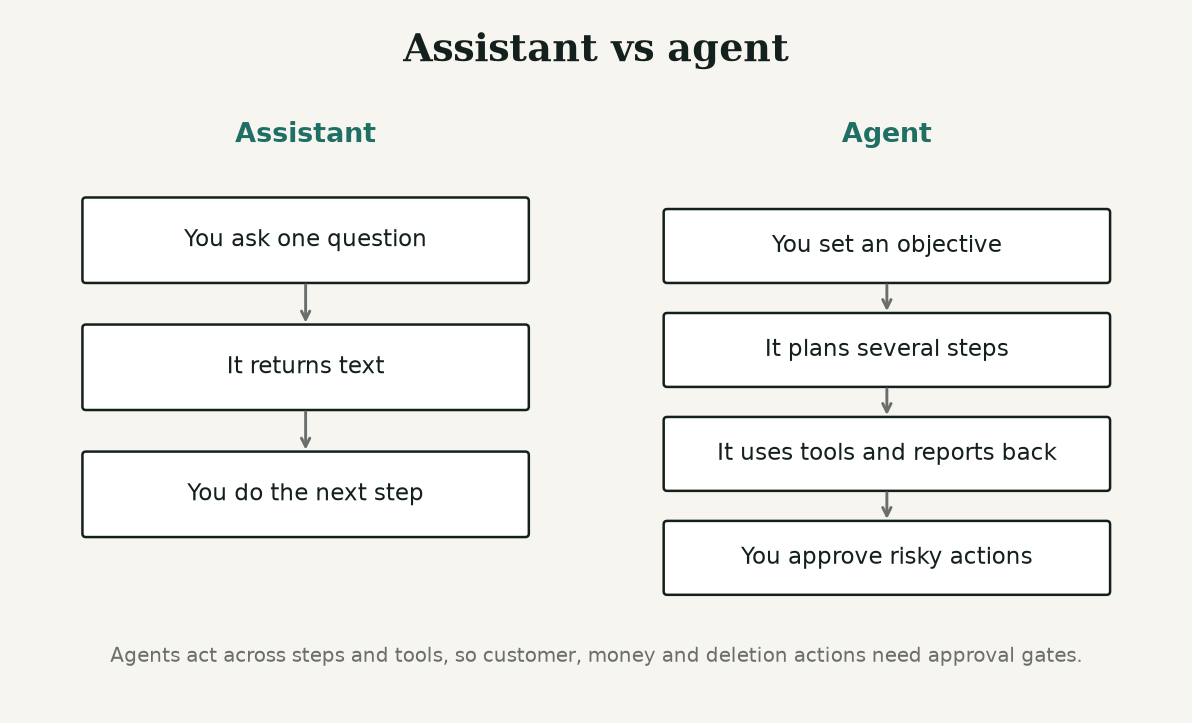
Assistant vs agent: an assistant answers one request at a time, while an agent plans and uses tools across steps with approval gates
Can small businesses use Gemini agents?
Yes, if your plan, admin settings and region include the feature. Start with internal, reversible tasks, keep permissions narrow and review every output. Google's own availability varies by edition and rollout, so check your Admin console before you build anything around a Gemini feature.
What do you need before building a workflow?
You need an eligible Google Workspace account, administrator access or cooperation, clean permissions and one clearly defined task. For the Runable route you also need to connect each app you want it to use.
- Check your Workspace plan. Google's Gemini subscriptions page lists Gemini with Google Workspace from $14 per seat per month, as checked on November 27, 2026. Exact pricing and access vary by edition, billing term and region, so confirm on Google's Workspace pricing page before you buy.
- Check feature availability. Gemini features, integrations and beta features can differ by plan, region and administrator settings. Google's admin documentation explains how Gemini access is turned on or off.
- Audit permissions. Remove unnecessary access to old customer files, shared drives, calendars and financial documents before connecting any AI tool.
- Choose one measurable task. A good first workflow happens every week, follows clear steps and is easy to reverse.
- Decide where approval is mandatory. Customer communication, money, deletions, legal documents and updates to a system of record should begin with human review.
For Runable, each connector is approved by you and works only inside the permissions you grant. See Runable's privacy and connector permissions and its plugins page.
Workflow 1: Triage customer emails and draft replies
Use Gemini or Runable to find unanswered customer emails, classify them and prepare draft replies, then review the drafts before anything is sent. In our Runable Chat test, five fictional emails were sorted and five drafts were created. Nothing was sent.
🧪 > Test status: Completed in Runable Chat with fictional data. The underlying model and scheduled execution were not verified.
What it does
It finds customer and lead emails, gives each a one-line summary, a category and a priority, and prepares a draft reply. Anything involving a refund, legal issue, personal data or an unhappy customer is flagged for a person.
Best for
- Agencies managing inbound leads
- Local businesses receiving quote requests
- Consultants with a shared sales inbox
- Small teams that miss follow-ups during busy weeks
Gemini in Google Workspace
Google says Gemini works inline in the email thread, inside Gmail (Google announcement). Feature access depends on your plan and admin settings, so check Google's documentation. Keep approval on before anything is sent.
Runable route
Runable Chat with the Gmail connector. Runable can search and read messages and create drafts, and it only does that when you ask (privacy and connector permissions).
Copyable prompt
This is the exact prompt we ran:
Search my Gmail for emails received today whose subject starts with [DEMO]. Ignore any other email. For each one, give a one-line summary, a category (sales lead, support, billing or complaint) and a priority. Then create a Gmail draft reply to each sender in a friendly, concise tone. Do not send anything and do not change labels or stars. For any complaint or refund request, write a short holding reply and flag it for human review in your summary. Refer to senders by first name only and do not print email addresses.
For your own inbox, replace "[DEMO]" with a label, sender or date range.
What we tested
We tested email search and draft generation in Runable Chat using the Gmail connector. No messages were sent automatically. The underlying model was not captured during the test.
We used five fictional emails: a quote request for 40 branded mugs, a late order, a wrong invoice amount, a demo request and an angry refund complaint.
Screen recording of Runable Chat triaging five fictional emails and creating five Gmail drafts (about 22 seconds, captioned)
| Item | Result |
|---|---|
| Mode | Auto |
| Connector | Gmail |
| Time | Worked for 36 seconds, 3 steps |
| Credits used | 7 |
| Output | Five emails categorized and prioritized, five drafts created |
| Sent | Nothing. We checked the Sent folder and the drafts afterward. |
| Flagged | The refund complaint was flagged for human review |
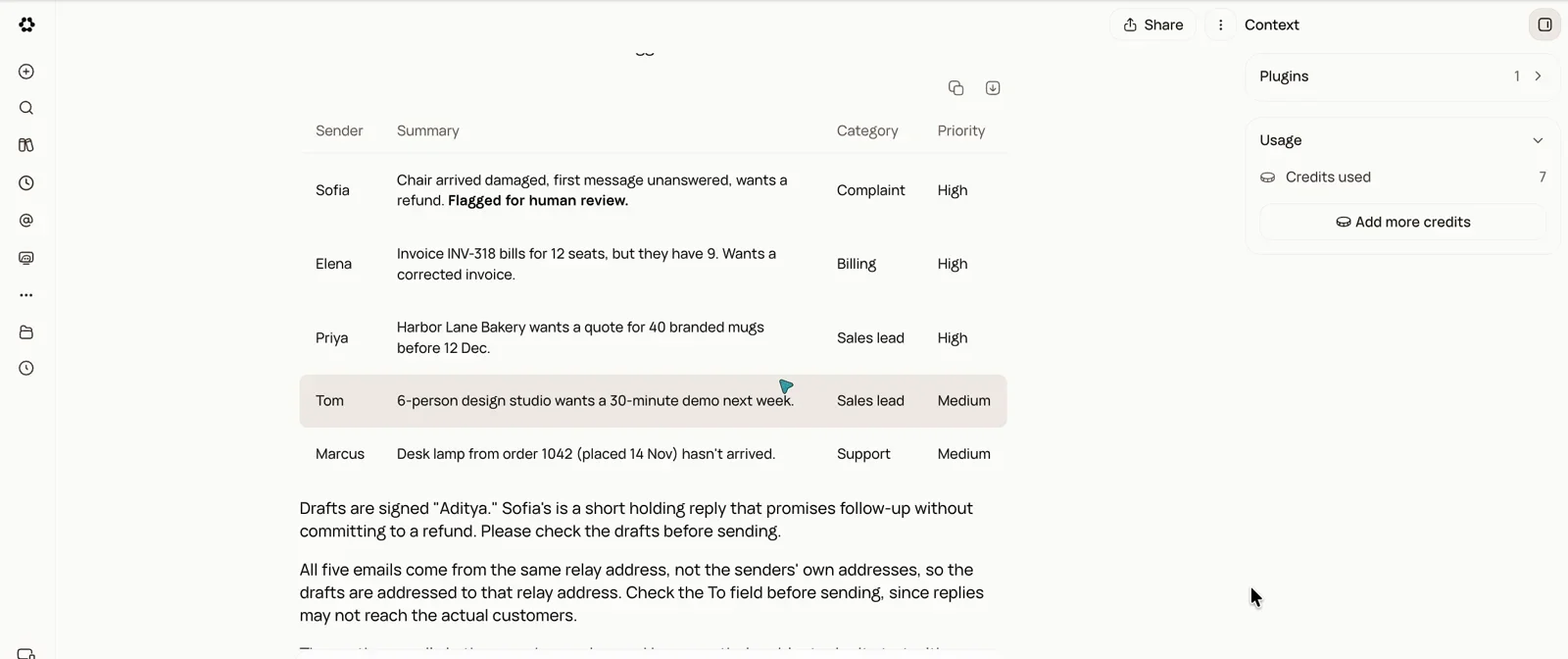
Runable Chat result table listing five fictional emails with a summary, category and priority for each, with 7 credits used shown at the top right
Here is one of the drafts, written to the fictional bakery quote request:
Hi Priya, Thanks for getting in touch about Harbor Lane Bakery. We can put together a quote for 40 branded mugs before your 12 December deadline. Could you confirm the design and any colour or print details you have in mind? I'll follow up with pricing. Best, Aditya
We ran this test twice. The first run found drafts that already existed in the mailbox, so we deleted them and recorded the second run. Because our test emails came from a relay address, the drafts were addressed to it. With real customers, check the To field before sending anything.
Video transcript: the recording shows the prompt in Runable Chat, the run sped up 7x, then the result table and the five drafts summary. Captions state the mode, connector, credits and that the model was not shown.
Beyond drafts
We kept this test to drafts so you can read every reply before it goes out. Runable can also send emails and repeat the job on a schedule, so once you trust the drafts you can let it send routine replies and run the triage every morning. Keep a person on refunds, complaints and anything sensitive.
Recommended route
Use Gemini if you want it inside the Gmail screen you already use. Use Runable Chat if you want the same task from one plain-language instruction, or if the triage result should also go to another connected app. In both cases, start with drafts only.
Workflow 2: Turn a meeting into assigned actions
An AI assistant can turn meeting notes into a recap, an action list and a draft follow-up email. A person should check owners and deadlines before anything is assigned or sent.
🧪 > Test status: Completed in Runable Chat with fictional meeting notes. The result is below. The model was not shown, and we did not test a live call.
What it does
It turns meeting notes or a transcript into decisions, open questions, risks and action items, then drafts a follow-up email for your approval. In this demonstration, Runable created a follow-up draft and stopped for approval. It can also send the approved follow-up when instructed.
Best for
- Weekly team meetings
- Client status calls
- Sales discovery calls
- Project handoffs
Gemini in Google Workspace
Google says Gemini works inside Docs, Gmail, Chat and Calendar (Google announcement). Whether it can use meeting notes or a transcript depends on your plan and settings, so confirm in Google's documentation. "Chat spaces" in this article means Google Chat spaces.
Runable route
Runable has a Notetaker that joins Google Meet, Zoom and Teams calls and writes summaries and action items (Notetaker page). In Chat, you can also paste notes from any source, and Runable works through the Gmail connector. We tested the paste-notes route.
Copyable prompt
This is the prompt we ran in a shortened form. We pasted fictional weekly sync notes for a bakery after it, and the same prompt works with your own notes.
Here are my meeting notes: [PASTE NOTES]. Extract the decisions, open questions, risks and action items. For every action, give one owner and one deadline only if the notes say so. If an owner or date is missing, write "needs owner" or "needs date" instead of guessing. Then create one Gmail draft to me with the summary. Do not send anything.
What we tested
We pasted fictional weekly sync notes from Harbor Lane Bakery into Runable Chat. Runable first asked which address the draft should go to, and we answered "the Gmail account connected here". It then pulled out the decisions, three action items, two open questions and one risk, and created the draft. Where the notes did not name an owner or date for the second flour quote and the oven question, it wrote "needs owner" and "needs date" instead of making one up.
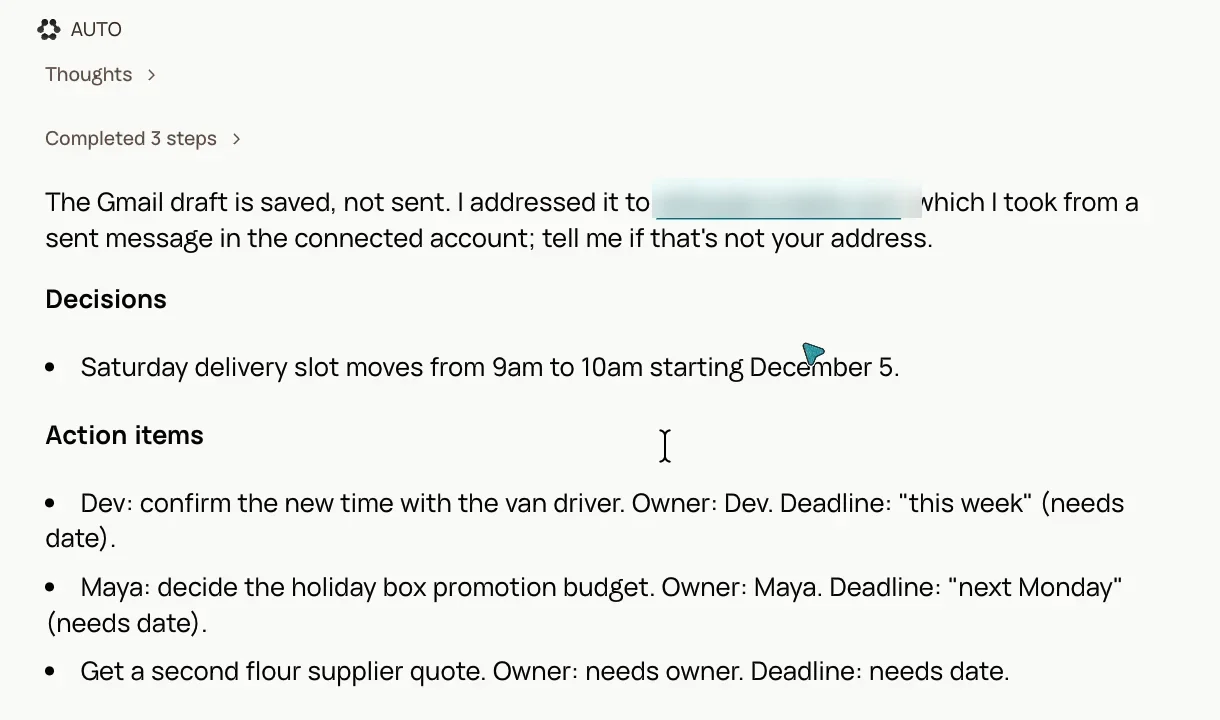
Runable Chat result for the fictional bakery meeting: decisions and action items, with "needs owner" and "needs date" where the notes did not say
The draft as it appears in Gmail. Our reviewer opened it from Drafts, and nothing was sent:
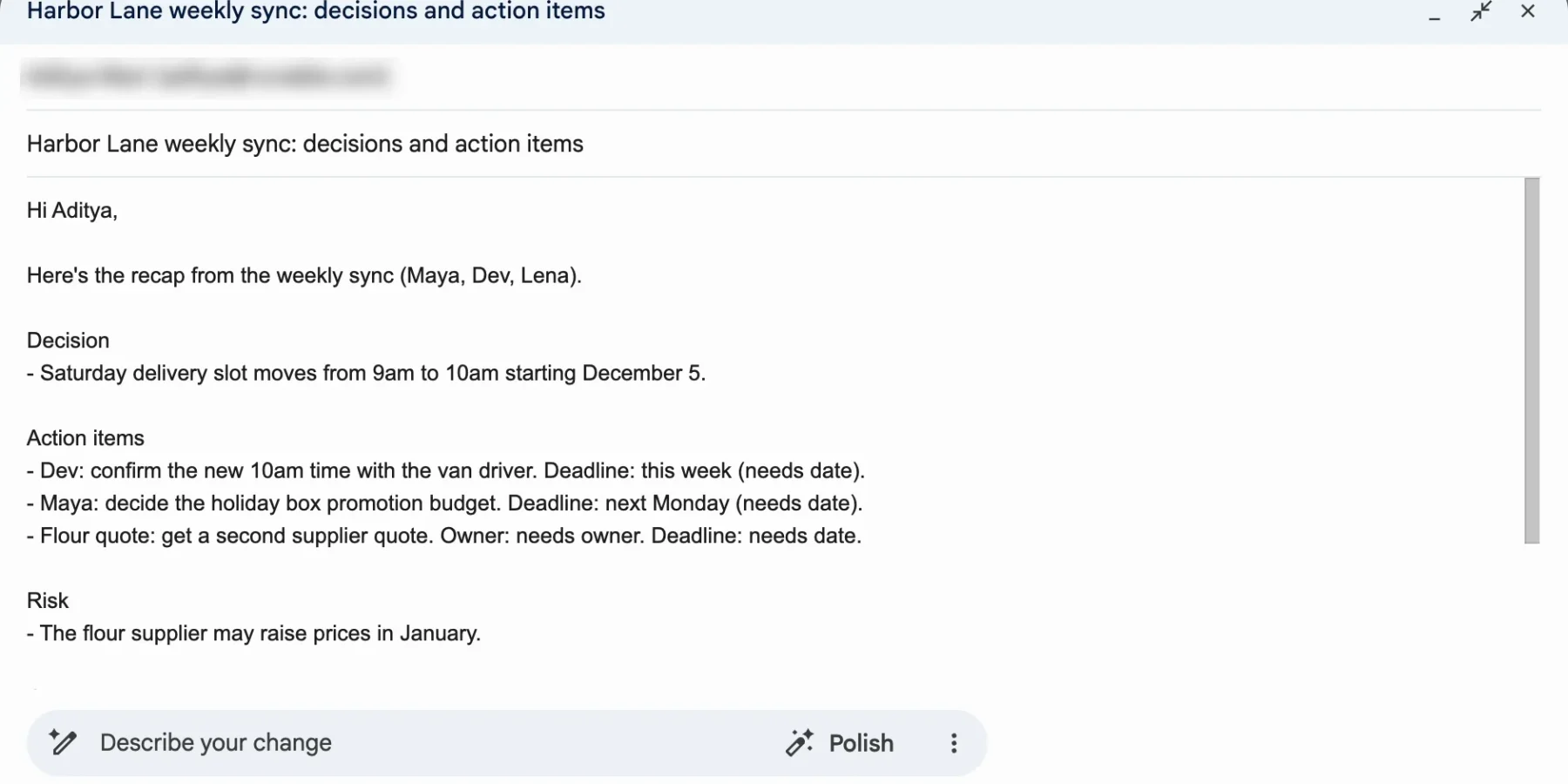
The generated Harbor Lane recap open as a Gmail draft: decision, action items marked "needs owner" and "needs date", and a risk
| Item | Result |
|---|---|
| Mode | Auto |
| Connector | Gmail |
| Time | Worked about 31 seconds, 3 steps, plus one clarifying question |
| Credits used | 9 |
| Output | Decisions, action items, open questions, risks and one Gmail draft |
| Gaps flagged | "needs owner" and "needs date" where the notes were silent |
| Sent | Nothing. We confirmed the draft sits in Drafts. |
Take it further
We pasted the notes in. Runable's Notetaker can record Meet, Zoom and Teams calls, so the notes can come straight from the meeting. Add Calendar reminders to the prompt if you want them, and for a long or messy meeting, skim the action items against the recording before you send.
Recommended route
If your meetings already run on Google Meet and Docs, try Gemini first. If your notes live elsewhere, or you want the follow-up as a Gmail draft from one instruction, paste them into Runable Chat. Check that owners and dates are not invented before you rely on it. Keep confidential details out of broad Google Chat spaces.
Workflow 3: Create a weekly sales report from Sheets
Point an assistant at a Sheet of sales rows and ask for totals by rep and product, plus a short report written back to the Sheet. In our Runable Chat test, the totals matched our manual check and the report was written beside the data. Raw rows stayed unchanged. We then ran it as a Scheduled Task, and the report arrived in Gmail.
🧪 > Test status: Completed in Runable Chat with fictional data, then run as a Scheduled Task that emailed the report. The underlying model was not verified.
What it does
It reads a Sheet of sales rows, calculates totals and shares, and writes a short report block next to the data without changing the raw rows. It then lists the totals and the cells it wrote so you can check them.
Best for
- Owners tracking weekly revenue
- Small sales teams
- Agencies reporting campaign performance
- Shops monitoring orders
Gemini in Google Workspace
Google says Gemini works inline in Sheets (Google announcement). Availability varies by plan (Google's documentation). Ask it to show its calculation and source range for every figure.
Runable route
Runable Chat with the Google Sheets connector reads the Sheet, calculates, and writes back to the cells you name. Before you let it write, tell it not to change the raw rows.
Copyable prompt
This is the prompt we ran, with the demo Sheet link replaced by a placeholder. Paste your own Sheet URL where it says [YOUR GOOGLE SHEET URL].
Read this Google Sheet: [YOUR GOOGLE SHEET URL] . Summarise revenue by rep and by product, calculate each rep's share of total revenue, and write the result to a report block beside the data, starting in column I. Do not change the raw rows. Then list the totals and the cells you wrote.
What we tested
What we verified: Runable read the fictional sales data, calculated the correct totals and updated the connected Google Sheet. We then ran the report as a Scheduled Task, and it arrived by email with the same totals. The underlying model was not shown during the test.
The input was a fictional Sheet with 10 sales rows (date, rep, product, units, unit price, revenue, region). We worked out the answer by hand first: total revenue 2,698; Rep A 1,134, Rep B 834, Rep C 730; Pro plan 1,194, Starter plan 1,185, Add-on pack 319. Runable's totals matched all of them, and it reported the shares as 42.03%, 30.91% and 27.06%. It wrote the rep summary to I1:K5 and the product summary to I7:J11, and left the raw data in A1:G11 unchanged.
View the dummy sales Sheet and verified output. The Sheet is view-only for anyone with the link. We loaded it without signing in to confirm that it opens and has no edit access.
Screen recording of Runable Chat reading a fictional sales Sheet, calculating totals by rep and product and writing the report back to the Sheet (about 27 seconds, captioned)
| Item | Result |
|---|---|
| Mode | Auto |
| Connector | Google Sheets |
| Time | Worked for 47 seconds, 1 step |
| Credits used | 89 for the run shown |
| Model | Not shown in the run |
| Calculation check | Matches our manual totals |
| Write-back | Report written to I1:K5 and I7:J11, raw rows unchanged |
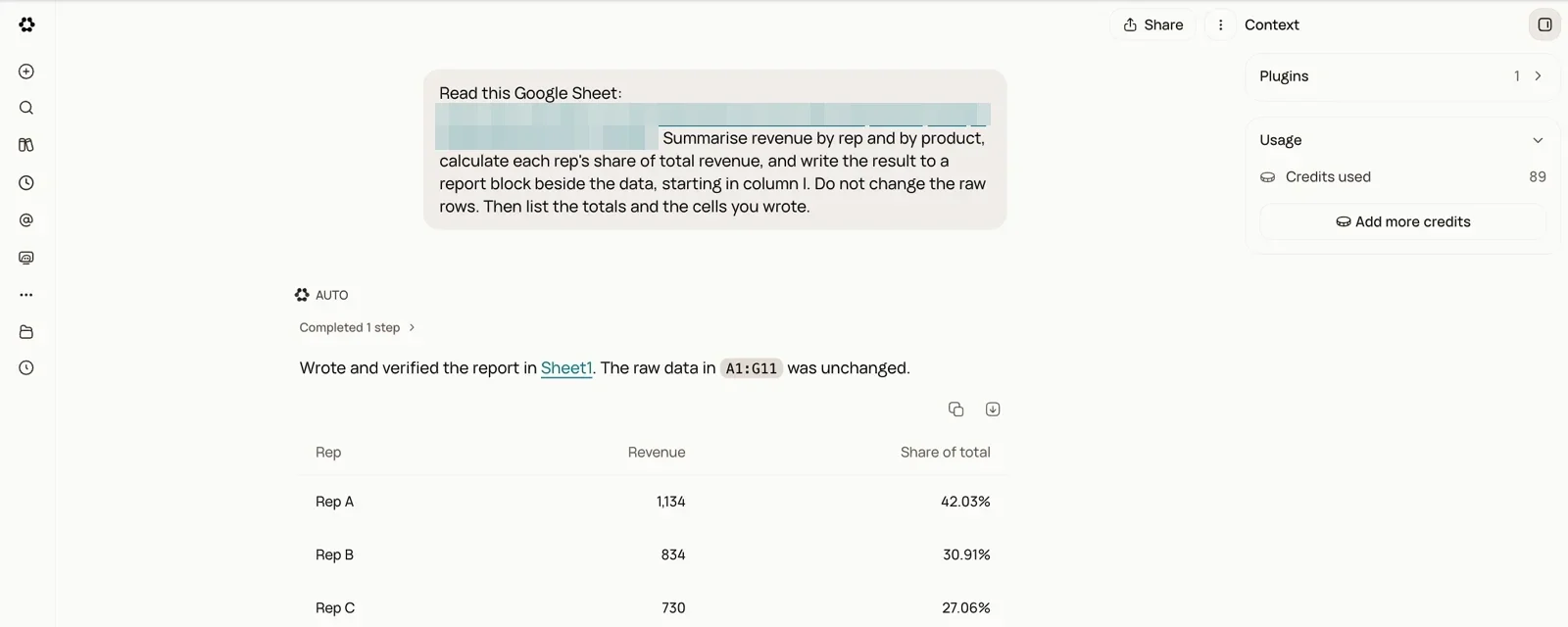
Runable Chat showing the Sheets prompt and the rep revenue table, with 89 credits used at the top right
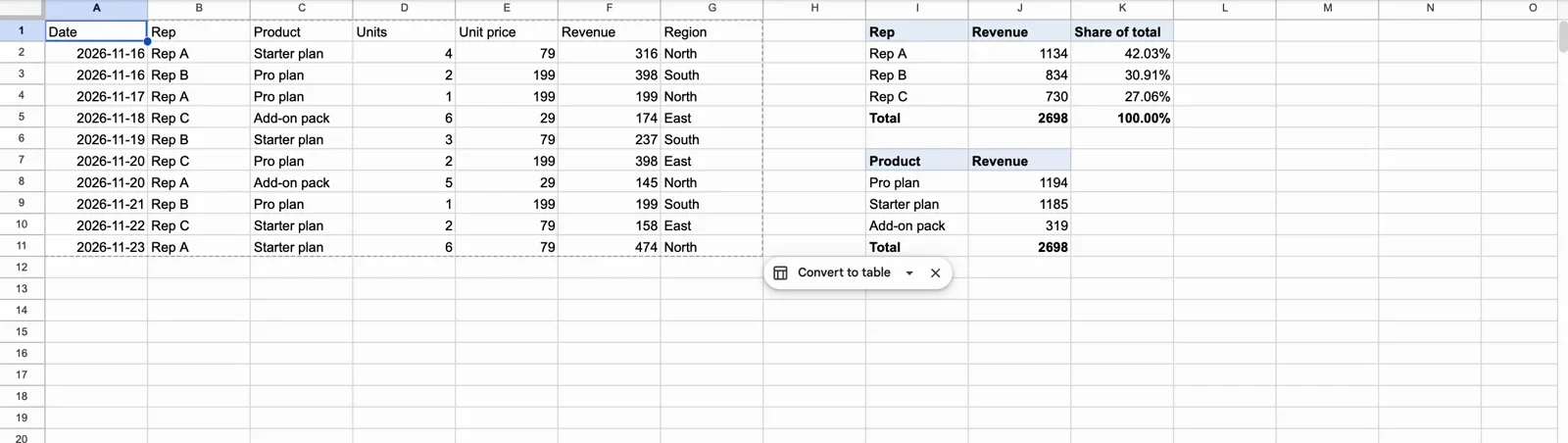
The fictional Google Sheet after the run, with raw sales rows on the left and Runable's rep and product revenue summary in columns I to K
We ran the same prompt more than once. An earlier run used 86 credits and wrote the report to slightly different cells, so the run you see is the final one. The recording is sped up 8x while it waits, and the caption says so.
Video transcript: the recording shows the prompt in Runable Chat, the run sped up 8x while it waits, the rep table in the answer, and the Sheet with the new report block. Captions state the mode, connector, credits, that the result matches our manual check, and that the model was not shown.
Scheduled version: the report arrives in your inbox
This is the part that makes it a routine instead of a one-off. From the same chat, we asked Runable to turn the report into a Scheduled Task that reads the Sheet (read-only) and emails the result. Runable showed a Scheduled Task card in the chat, we saved it, and set it to run once at 5:45 PM IST so we could watch it. It ran on time. The email arrived in Gmail at 5:45 PM with the same numbers we had checked by hand: total sales 2,698, Rep A 1,134, Rep B 834 and Rep C 730. It also noted that no rows had missing values and that the Sheet was not edited.
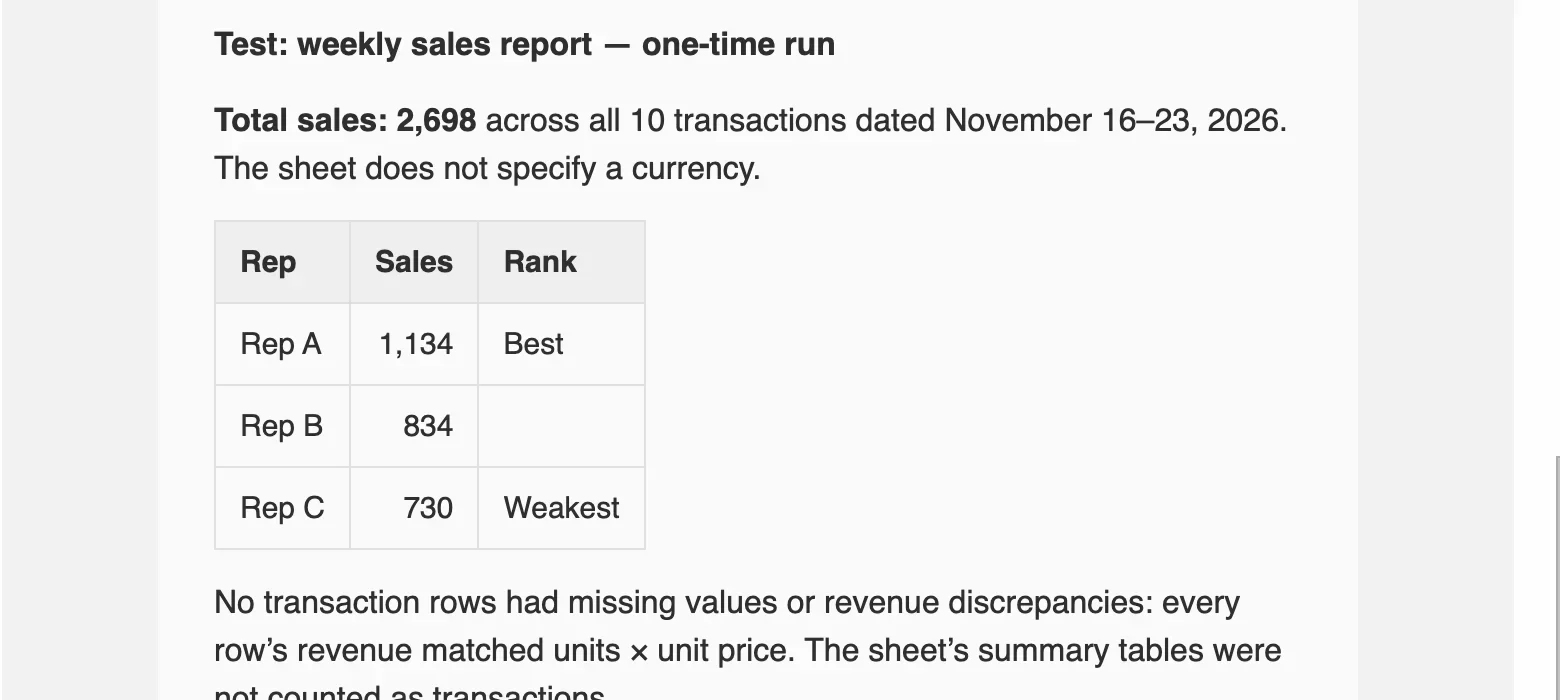
The Runable scheduled task email in Gmail, with total sales of 2,698 and a table of sales by rep
| Item | Result |
|---|---|
| Schedule | One-time run at 5:45 PM IST (the same card can repeat daily, weekly or monthly) |
| Result | Email in Gmail the same minute, plus the full run in the chat |
| Credits | About 40 to create the task in chat; the chat's counter read 78 after the run, so the run used roughly 38 |
| Sheet | Read-only, not edited |
| Mode | Auto, model not shown |
We saved a one-time run for the test, so we did not leave a weekly job running.
Take it further
The same Scheduled Task can repeat daily, weekly or monthly. Ask for "the previous Monday to Sunday" so each report covers one clean week, and compare the first few reports with your Sheet.
Recommended route
This is the workflow we would start with. If the data is already in Sheets and you want the answer there, try Gemini in Sheets first. If you want the same job triggered from one instruction, or want to send the result somewhere else later, use Runable Chat. Either way, check the figures against the Sheet before sharing.
Workflow 4: Coordinate an external meeting
An assistant can propose meeting times, draft the coordination email and prepare a Calendar event. Keep a person in the loop and create the event only after everyone confirms a time.
🧪 > Test status: Completed in Runable Chat with fictional Calendar events. The result is below. The model was not shown.
What it does
It finds the attendees, proposes times within your working hours, drafts the coordination email for your approval and prepares a Calendar event. The event is created only after everyone confirms a time.
Best for
- Client calls and project reviews
- Small teams with a lot of back-and-forth scheduling
- Routine calls, not executive, legal, hiring or crisis meetings
Gemini in Google Workspace
Google's announcement describes Gemini working out who is involved, checking calendars and starting an email thread to coordinate a time, even with external participants (Google announcement). Availability depends on your plan, settings and rollout.
Runable route
Runable Chat with the Gmail and Google Calendar connectors.
Copyable prompt
This is the prompt we ran, in a shortened form. Change the dates, hours and time zone to yours.
A customer named Priya wants a 30-minute call between 7 and 11 December, between 10am and 4pm India time. Look at my Google Calendar and find three free 30-minute slots. Draft a reply to her in Gmail that offers those three times. Do not send anything and do not change my Calendar.
In our run we added one line: treat only events whose title starts with [DEMO] as busy, so the test ignored our real calendar.
What we tested
We created three fictional Calendar events (a supplier call, a catering tasting and a staff meeting) and asked Runable to avoid them. Runable first asked us to connect Google Calendar. Our account was already linked, so we confirmed and told it to continue. It then proposed Monday 7 December 11:30am to 12:00pm, Tuesday 8 December 10:00 to 10:30am and Thursday 10 December 2:00 to 2:30pm IST, and created a Gmail draft offering them. We deleted the fictional events afterward.
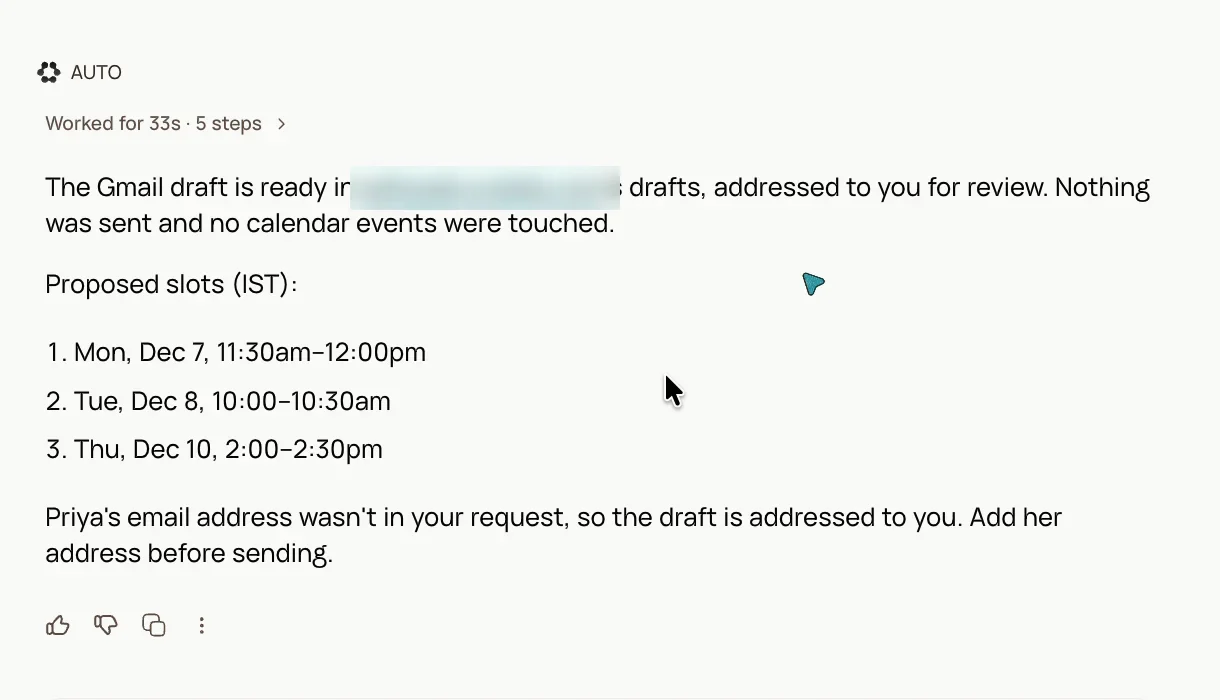
Runable Chat result for the fictional scheduling request: three proposed slots and a Gmail draft, with nothing sent and no Calendar events touched
The draft as it appears in Gmail. Priya's address was missing from our request, so the draft was addressed to us, and nothing was sent:
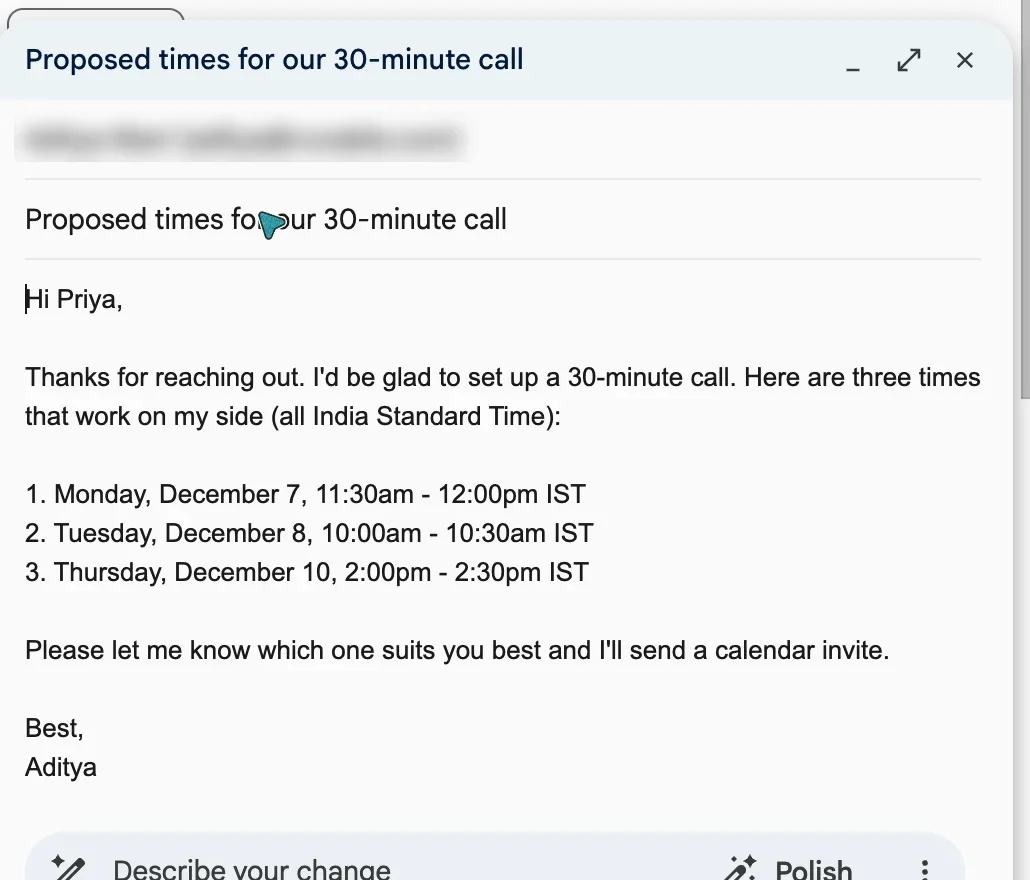
The generated scheduling reply open as a Gmail draft, offering three 30-minute slots
| Item | Result |
|---|---|
| Mode | Auto |
| Connectors | Google Calendar and Gmail |
| Time | Worked for 33 seconds, 5 steps, plus a one-time Calendar connection step |
| Credits used | 15 |
| Output | Three free 30-minute slots and one Gmail draft |
| Sent | Nothing. We confirmed the draft sits in Drafts. |
| Calendar | No events created or changed |
Priya's email address was not in our request, so Runable addressed the draft to us and told us to add her address before sending. That is the right behavior for a draft, and it is also a reminder to check the To field.
Take it further
Once a customer picks a slot, ask Runable to create the Calendar event and send the invite. Try it with a [DEMO] event first, and state the time zone in your prompt when attendees are elsewhere.
Recommended route
Start with Gemini if scheduling happens inside Gmail and Calendar. Runable Chat is a good fit for turning your free time into a ready-to-send reply. Begin with a draft. After verifying the recipient, time zone and proposed slots, Runable can send the approved reply and create the confirmed Calendar event.
Workflow 5: Update a CRM from a lead list
An assistant can check a new lead for required fields, look for an existing CRM contact, and prepare an update or a new record for your approval. Connector depth varies a lot, so confirm read and write support first.
🧪 > Test status: Completed in Runable Chat using a Google Sheet as the CRM, with fictional leads. We did not test a dedicated CRM such as HubSpot. The model was not shown.
What it does
It checks each approved lead for required fields, searches the CRM for an existing contact, prepares an update or a new record, waits for your approval, and logs the result or error in the Sheet.
Best for
- Teams that qualify leads in a Sheet and keep customers in a CRM
- Anyone tired of copying contact details by hand
Gemini in Google Workspace
Google's announcement says Gemini can connect to tools such as Confluence, Microsoft Office, Teams, Slack, Jira, Salesforce, ServiceNow, databases and MCP servers (Google announcement). Access and supported actions vary by product and edition, so verify your exact app in your admin console.
Runable route
Runable Chat with the Google Sheets connector, or with a CRM connector. Runable's plugins page lists 3,000+ apps, including a Sales & CRM category. If your CRM is a Google Sheet, this works today, and that is the route we tested. For a dedicated CRM, pick one connector and confirm that it supports the read and write actions you need.
Copyable prompt
This is the prompt we ran, in a shortened form. Paste your own Sheet URL and the customer's message.
Here is a customer reply from [NAME]: "[PASTE THE REPLY]". Use it to update their row in this Google Sheet, which I use as a simple CRM: [YOUR GOOGLE SHEET URL]. Set Stage, Last contact and Next step, and add the reply to their Notes. Do not change any other row or column. First show me the exact change you plan to make and wait for my OK before you write anything.
What we tested
We made a fictional five-lead Sheet with Lead, Company, Stage, Last contact, Next step and Notes columns. We then gave Runable a fictional reply from a customer who accepted a quote for 40 mugs. Runable found her row, showed the four cells it planned to change and kept the old note instead of overwriting it. It wrote nothing until we replied "OK", and then it changed only those four cells. We read the Sheet back afterward: the other four rows were unchanged.
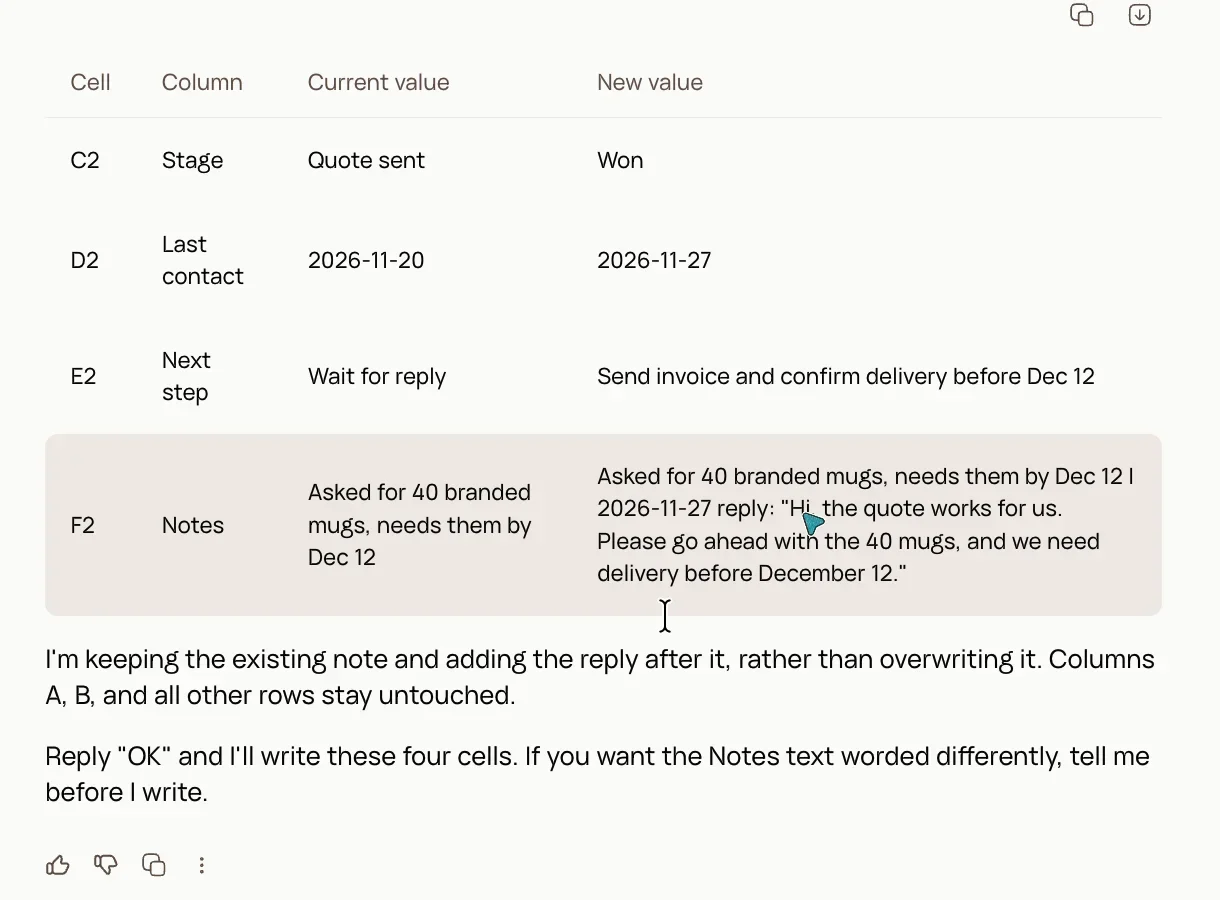
Runable Chat showing the planned change to the lead's row before anything was written: the Stage, Last contact, Next step and Notes cells with their old and new values
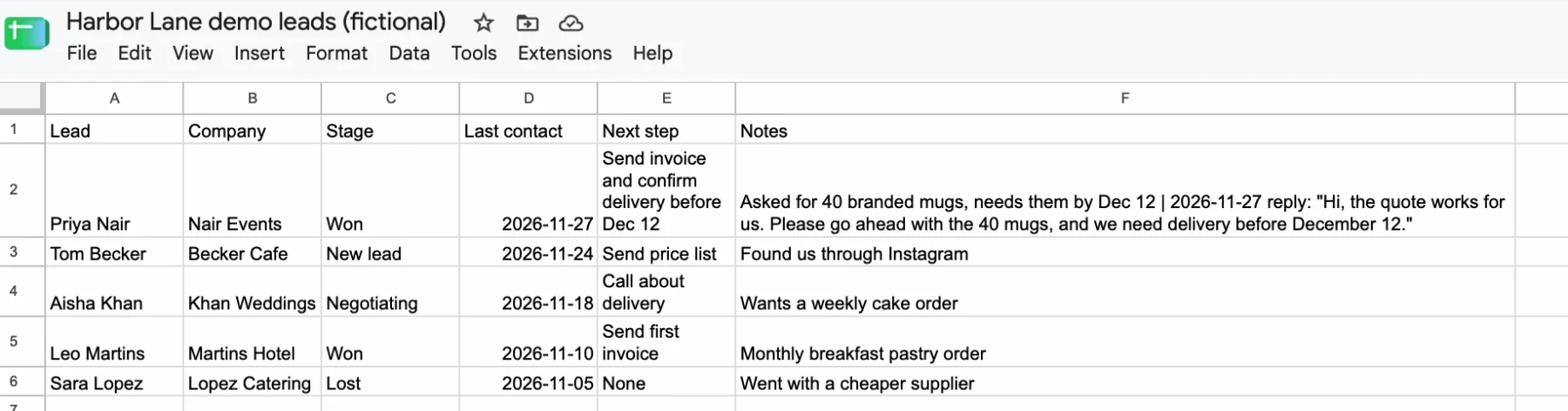
The fictional lead Sheet after the run: the first lead is now marked Won with a new next step and the customer's reply added to her notes, and the other rows are unchanged
| Item | Result |
|---|---|
| Mode | Auto |
| Connector | Google Sheets |
| Credits used | 8 across two messages: the plan, then our "OK" |
| Approval | Runable showed the exact change and waited for our OK before writing |
| Write | Four cells in one row (C2:F2) |
| Other rows | Unchanged, checked by reading the Sheet back |
Take it further
If your leads live in a dedicated CRM such as HubSpot, connect it from Runable's plugins and keep the same approval step. Real CRMs have required fields and duplicate records, so test a few cases before you point it at live data.
Recommended route
Use Gemini's integration if your CRM is on Google's supported list and your admin has enabled it. If your leads live in a Sheet, or in an app Runable connects to, Runable Chat with an approval step is a good fit. Do not let either tool write to your live CRM until it has handled several test cases without a serious error.
Which workflow should you automate first?
| If your problem is | Start with |
|---|---|
| Too many emails | Gmail triage and drafting |
| Missed meeting follow-ups | Meeting follow-up workflow |
| Manual weekly reporting | Google Sheets report |
| Time spent coordinating meetings | Calendar scheduling |
| Fragmented customer information | CRM update workflow |
What should an agent not handle alone?
Keep a person in control when the task involves:
- Sending payments or changing bank details
- Deleting customer, financial or operational records
- Signing contracts or accepting legal terms
- Making hiring, firing, credit, insurance or medical decisions
- Publishing claims that have not been fact-checked
- Responding to angry customers or reputational incidents
- Changing prices, refunds or contractual commitments
- Accessing more data than the task requires
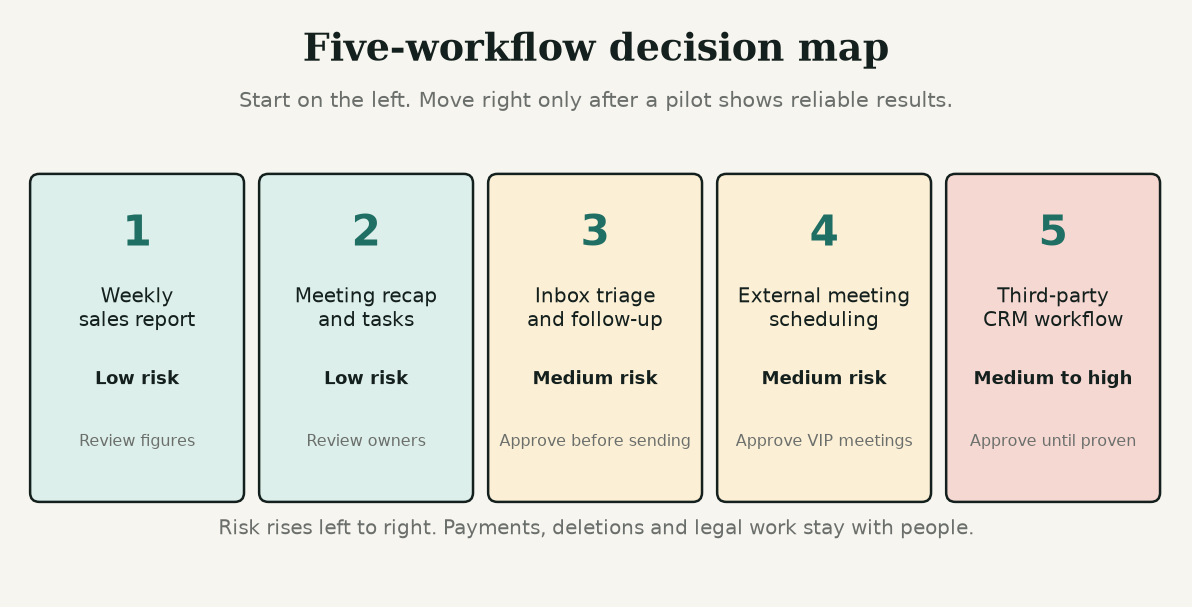
Google's announcement describes identity, authorization, audit trails, policy management, sandboxing and spend controls for enterprise agents. Those controls reduce risk, but they do not remove the need for a responsible owner.
How much do these workflows cost?
Direct answer: On price, the two are close: Google AI Pro is $19.99 a month and Runable Pro is $20 a month. What differs is what the money buys. Google's plans buy Gemini access, and Workspace buys the business suite with Gemini built in. A Runable plan buys credits you can spend on these workflows or on websites, video, slides, marketing and ads. Every price below was checked on November 27, 2026.
| Option | Price | What it covers |
|---|---|---|
| Runable Free | $0 | 1,500 credits daily, websites and app building, slides, images, documents, Notetaker and 3,000+ plugins |
| Runable Pro | $20 per month | 25,000 credits monthly plus 1,500 daily. Adds video creation, 100+ curated workflows, an assistant in Slack, Teams, Telegram, iMessage and Discord, and a free database, analytics, Stripe integration and sub-domain for sites you build |
| Runable Max | $100 per month | 150,000 credits monthly plus 1,500 daily, and unlimited chats in Ask mode |
| Google AI Pro | $19.99 per month | Higher Gemini usage limits, Gemini in Gmail, Docs, Vids and more, 1,000 Google Flow credits and 5 TB of storage |
| Google AI Ultra | From $99.99 per month ($199.99 for 20x limits) | 5x the usage limits of AI Pro (20x at $199.99) |
| Gemini with Google Workspace | From $14 per seat/month | Business Workspace and built-in Gemini features; exact pricing and access vary by edition, billing term and region |
The Google AI plans are for individuals. Google Workspace is intended for organizations using company-managed accounts, and its editions include different levels of Gemini access.
How to read the comparison
Credits and usage limits are not the same unit, so you cannot set 25,000 Runable credits against "4x higher usage limits" and call a winner. A better question is how many separate tools you need. If your work stays inside Gmail, Calendar and Sheets, Workspace with Gemini may be all you need. If you also want a website, product videos, slides, marketing content or ads, one Runable account covers them in the same chat that runs these workflows, so you are not paying for a separate tool for each. Many teams keep Workspace and add Runable on top.
The Workspace row shows a starting price. That starting price does not confirm that every Gemini agent capability described above is included. Check the exact feature, edition, beta status and administrator requirements before you buy.
Google Workspace pricing varies by edition, billing term and region, so see Google Workspace pricing and its business plans page for your own quote. The Workspace starting price and the Google AI plan prices come from Google's Gemini subscriptions page. Runable prices come from the Runable pricing page, which has a monthly and annual toggle, so check which one you are viewing before you budget. The pricing page lists 3,000+ plugins on every plan.
In our demos, the Gmail triage run used 7 credits, the meeting follow-up 9, the scheduling run 15, the CRM update 8 and the Sheets report 89. Credit use can vary with workflow complexity, tool calls and model selection. These runs are examples, not guaranteed per-run costs.
For Gemini Enterprise, see Google's quota and pay-as-you-go documentation. Do not calculate a five-person budget until you know which product, edition and quota the workflow needs.
Where should you run the workflow?
Direct answer: Use Gemini inside Google Workspace when the task lives in Gmail, Calendar, Drive or Sheets and native permissions matter most. Use Runable Chat with connected apps when one task spans several services, or you want to start from one plain-language instruction.
Use Gemini inside Google Workspace when:
- The task lives mainly inside Gmail, Calendar, Drive or Sheets.
- Native Google context and permissions matter most.
- You want the AI in the app you already have open.
Use Runable Chat with connected apps when:
- The workflow spans several connected services.
- You want to start from one plain-language instruction.
- You want to combine Workspace data with another connected app.
- You want one place for the rest of the business too, such as your website, video, slides, marketing and ads.
Runable does not sit natively inside Gmail or Sheets the way Gemini does. It reaches them through connectors you approve. A small business can reasonably use both. For a separate comparison of the two products on creative work, see Runable vs Gemini: creative work comparison. For a related look at Google's agent, see Google Gemini AI Agent for Workspace: SMB Guide 2026.
A safe 30-day rollout
Week 1: Define and observe
- Pick one high-frequency, low-risk task.
- Write the current human process step by step.
- Record the baseline time and error rate.
- Give the assistant read-only access where possible.
- Review every output.
Week 2: Run with approvals
- Use the workflow on real but reversible cases.
- Require approval before every external or write action.
- Log failures, missing data and corrections.
- Tighten the prompt and permissions.
Week 3: Automate the safe steps
- Automate only the steps that performed consistently.
- Keep approval on customer communication and system changes.
- Add clear stop conditions and error handling.
- Review the audit log at least weekly.
Week 4: Measure and decide
- Compare time saved against setup and review time.
- Count mistakes and near misses.
- Ask the people using the workflow whether it reduced work.
- Expand, revise or stop based on evidence.
📏 > A useful pilot has a measurable outcome: fewer missed leads, faster reports, fewer scheduling emails or fewer dropped action items. "The AI felt impressive" is not a business result.
Free workflow starter pack
No email required. Download the files below and use them as they are.
- Workflow starter pack (XLSX): a lead-tracking sheet, a weekly sales report with formulas, a 30-day measurement tracker and an approval-gate checklist
- Five prompts and approval checklist (MD): the five copyable prompts from this guide, the approval gates and the measurement method
The sheets contain no customer data. Replace the sample headings with your own before you connect any tool to them.
FAQ
What is a Gemini agent?
A Gemini agent is an AI system that pursues a multi-step goal across tools such as Gmail, Calendar, Drive and Sheets, instead of answering one prompt at a time. It can plan steps, use your context, take approved actions and report back. Which of these actions you get depends on your Google plan, admin settings and rollout.
Can small businesses use Gemini agents?
Yes, if your plan, admin settings and region include the feature. Start with internal, reversible tasks, keep permissions narrow and review every output. Google's own availability varies by edition and rollout, so check your Admin console before you build anything around a Gemini feature. Human review matters most for customer messages, money and records.
Can I run similar workflows in Runable?
Yes. In our tests Runable searched Gmail and created drafts, turned meeting notes into action items, found free slots in Google Calendar, updated a lead row in a Sheet after we approved it, and wrote a report back to a Sheet. We used fictional data and did not confirm the underlying model.
Why choose Runable instead of just Gemini?
Gemini is strongest inside Google's own apps. Runable is a general AI agent: it connects to 3,000+ apps, runs workflows like the five above, repeats them on a schedule, and also builds websites, videos, slides and apps and helps with marketing and ads. If you want everything done in one place, through one Runable account, that is the reason to pick Runable. Many teams use both.
Can Runable repeat a workflow every week?
Runable's Scheduled Tasks page says you can schedule a task to run once, daily, weekly or monthly and get the result by email, in the mobile app or in a connected chat app. We ran one for the sales report, and it emailed us the result. See workflow 3 for what happened.
Is Runable using Gemini?
Not necessarily. Runable may select a compatible model for a task. Unless a run record identifies the model, the result should be attributed to Runable rather than Gemini.
Which workflow should I automate first?
Pick the one that is low risk and happens often. For most small businesses that is the weekly Sheets report or a Gmail drafting workflow that creates drafts only. Avoid payments, deletions, legal work and unsupervised customer messages until you have measured reliability.
Should an agent send emails or update records automatically?
Not at first. Begin with drafts and proposed changes, use the narrowest permissions the task needs and keep an approval step before anything leaves your account or changes a system of record. Move to automatic actions only after the workflow handles representative cases without a serious error. Runable can send emails and update records as well as draft them, so you can switch sending on once you trust the results.
Can Gemini work outside Google Workspace?
Yes, through supported integrations, tools and connectors, but availability and action depth vary. A connector may read data without being allowed to update it. Runable takes a different approach: you connect each app you want it to use and approve its permissions. Verify your exact app, plan and required actions in either case.
Is Gemini safe for customer-facing work?
It can assist, but begin with human approval. Restrict access, review source data, require approval for external messages and monitor the audit trail. Expand autonomy only after the workflow performs reliably across representative cases.
Should a small business cancel Zapier or other automation tools?
Not based on an announcement alone. First confirm that the replacement supports every trigger and action you need, then run it in parallel for a full month before cancelling anything.
Try a connected workflow in Runable
Connect the apps your workflow needs, paste one of the prompts from this guide and check the result. When you trust it, turn it into a Scheduled Task so it runs every week. The same account can also build your website, make your videos and slides, and run your marketing and ads, so you can do it all in one place.
Try a connected workflow in Runable
Related reading
- Google Gemini AI Agent for Workspace: SMB Guide 2026
- AI Workflow Automation: 7 No-Code Workflows for 2026
- AI Automation for Small Business: What to Automate First
Sources
- Google: Tasks in Gemini rollout, November 17, 2026
- Google Cloud: Gemini at Work 2026, introducing the Gemini agent
- Google Workspace Admin Help: turn Gemini access on or off
- Google Workspace pricing
- Google Workspace business plans
- Gemini Enterprise quotas and pay-as-you-go usage
- Runable pricing
- Runable plugins and integrations
- Runable privacy policy, including Google connector permissions
- Runable Scheduled Tasks